How to Add a Chatbot to Your Website (Step-by-Step, 2026)
QueryWing Team
11/26/2026
6 min read
12 views
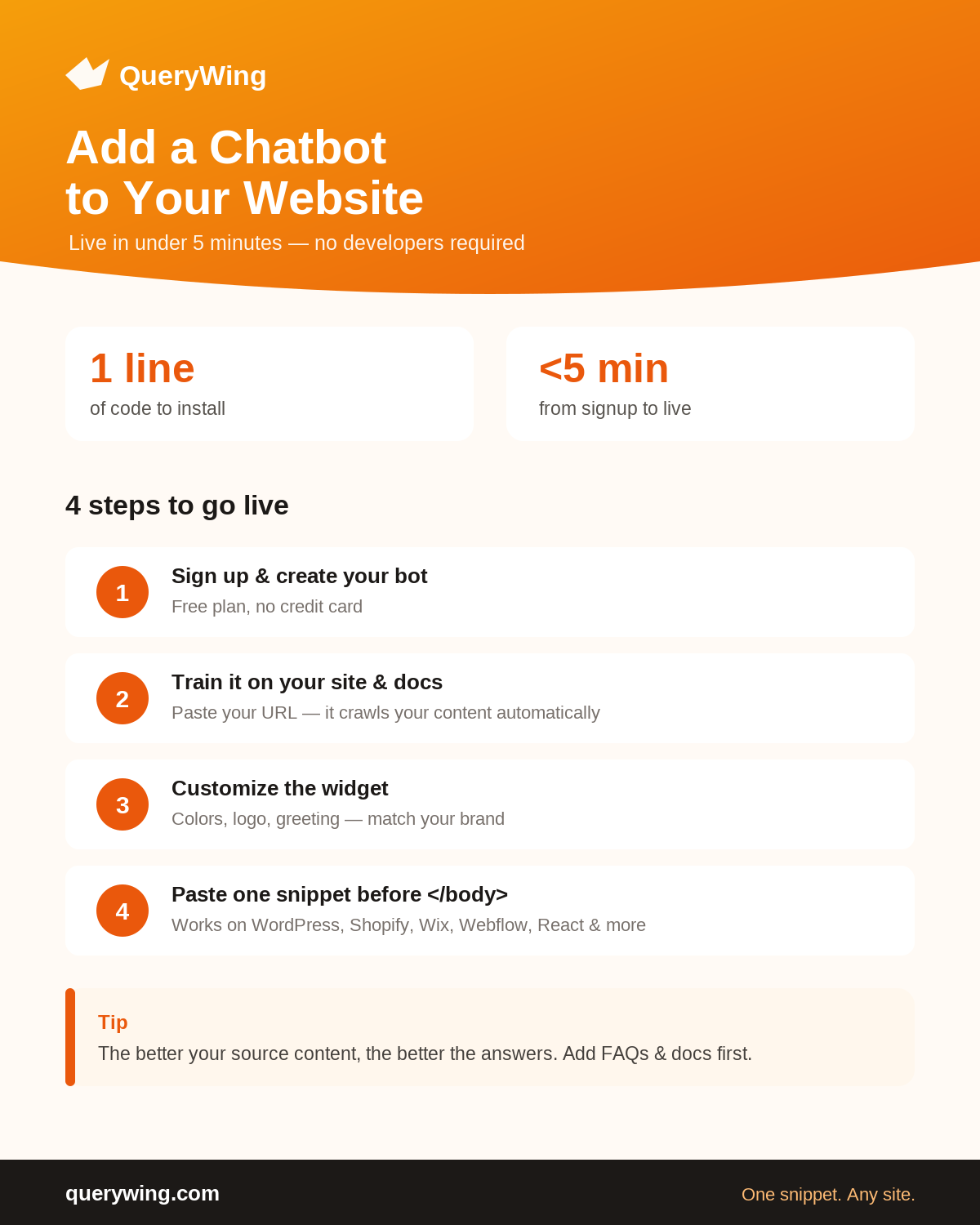
Adding a chatbot to your website takes under five minutes: create a bot, train it on your content, customize the widget, and paste one line of code before the closing body tag. Here is the exact process.
Adding a chatbot to your website takes under five minutes: create the bot, train it on your content, customize the widget, and paste one line of code before the closing
tag. No developers required. Here is the exact process.
Step 1 — Create your bot
Sign up (QueryWing has a free plan, no credit card) and create a new chatbot. Give it a name and pick the languages you support.
Step 2 — Train it on your content
Point the bot at your website URL — it crawls your pages automatically — and upload any help docs, PDFs, or FAQs. This step matters most: the quality of the AI's answers tracks the quality of your source content, so add your best material first.
Step 3 — Customize the widget
Match your brand: colors, logo, launcher position, and a welcome greeting. Set a fallback message and decide when the bot should offer a human handoff.
Step 4 — Paste one line of code
Copy your embed snippet and paste it just before the closing tag. It works everywhere:
WordPress — add to the theme footer or a custom-HTML block
Shopify — paste into theme.liquid before
Wix / Squarespace / Webflow — use the custom-code / embed section
React / Next.js / plain HTML — drop it into your layout
Publish, refresh your site, and the widget appears.
After launch
Review conversation logs weekly, add answers for anything the bot missed, and turn on lead capture so it collects name and email mid-chat.
Get started
QueryWing installs with one snippet on any platform and goes live in minutes. Start free with the [website chatbot](https://querywing.com/features/website-widget), or if you run a small team see our [AI chatbot for small business](https://querywing.com/chatbot-for-small-business) guide.
Frequently asked questions
How do I add a chatbot to my website?
Create a chatbot, train it on your website and documents, customize the widget to match your brand, then paste a single line of embed code before the closing tag. With QueryWing this takes under five minutes and needs no developers.
Do I need a developer to install a chatbot?
No. Modern chatbots install with one snippet of code that anyone can paste. It works on WordPress, Shopify, Wix, Squarespace, Webflow, React, Next.js, and plain HTML.
Is there a free way to add a chatbot?
Yes. QueryWing has a free plan with no credit card required, so you can add an AI chatbot to your site at no cost and upgrade later as your volume grows.
Where do I paste the chatbot code?
Paste the embed snippet just before the closing tag on every page where you want the widget to appear. On platforms like WordPress or Shopify you can add it once in the theme or a custom-code section.